Everyone on your team is already using an AI assistant. The question is whose server the conversation lands on.
For a lot of work that does not matter. For the rest, it matters a great deal: a draft contract, a customer's export, a patient cohort, an unreleased design, a codebase under NDA. The convenient path sends all of it to a third party's cloud, under a privacy policy you did not write and cannot audit. The usual alternative is to ban the tools, which means people use them anyway from a personal account.
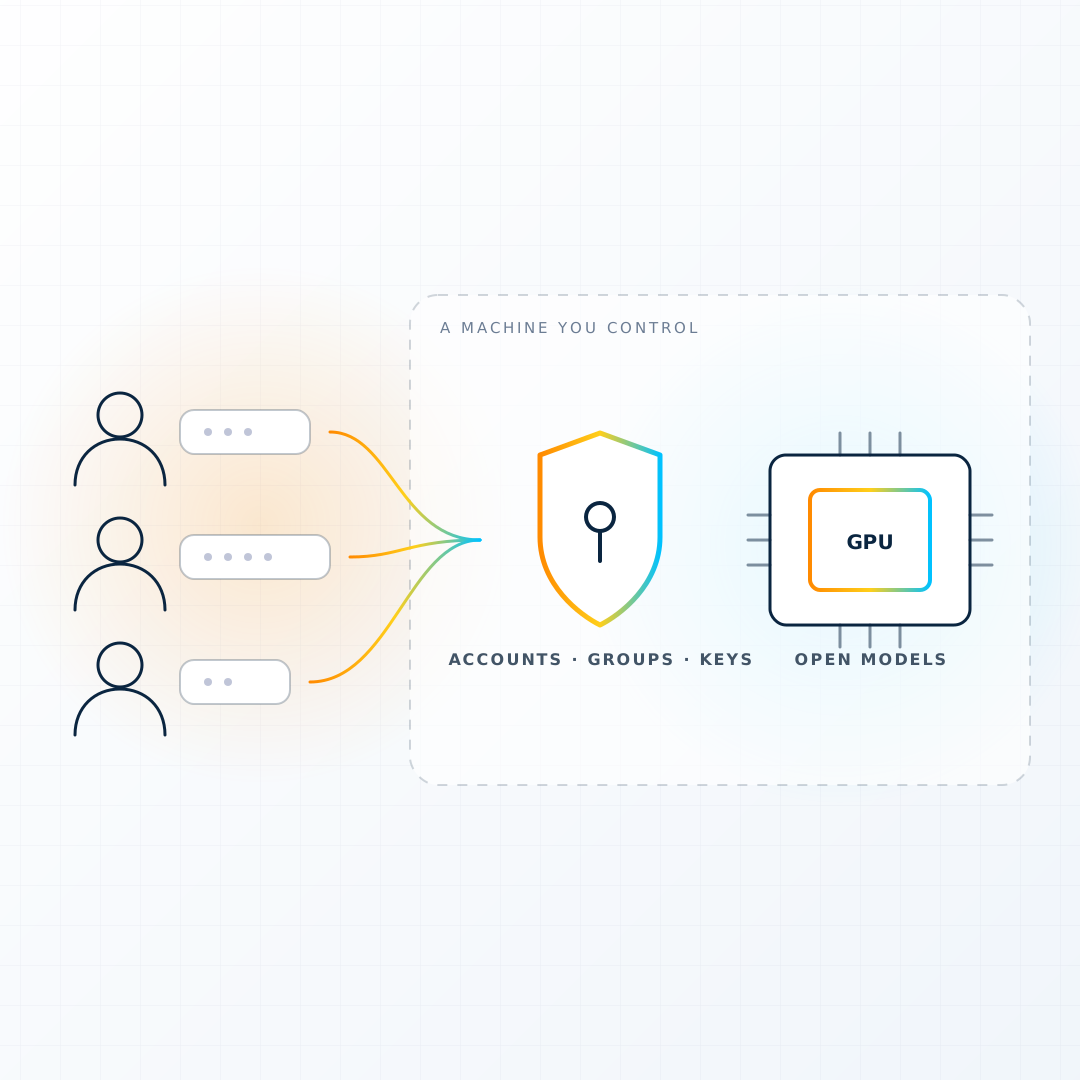
There is a third path. Run the model yourself, on a machine you control, and put a proper front door in front of it: accounts, groups, per-model permissions, personal API keys and an audit log. Give the team a URL. That is what this post walks through, and it takes one command.
The pieces:
- Open WebUI is the open-source chat interface most people would recognise from the commercial products. It supports accounts and roles, groups, per-model access, document upload with retrieval, and an OpenAI-compatible API with a key per user.
- Ollama is the model server. It pulls open models such as Llama, Qwen, Gemma, Mistral and DeepSeek from a library and runs them on whatever GPU it finds.
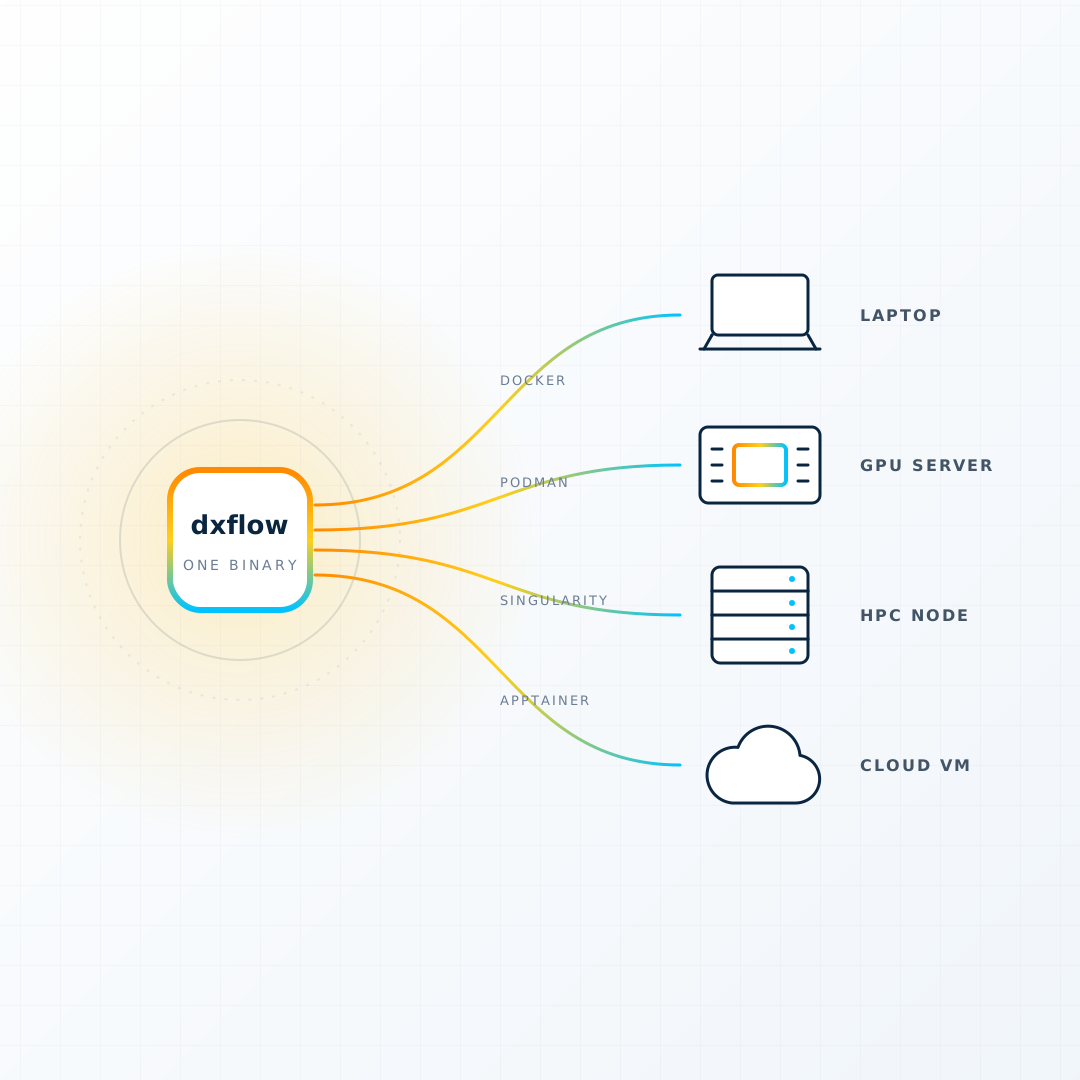
- dxflow is the engine that runs both as one containerised workflow, on a cloud VM, a lab GPU server or an HPC node, and publishes the result on an HTTPS address with a certificate already issued.
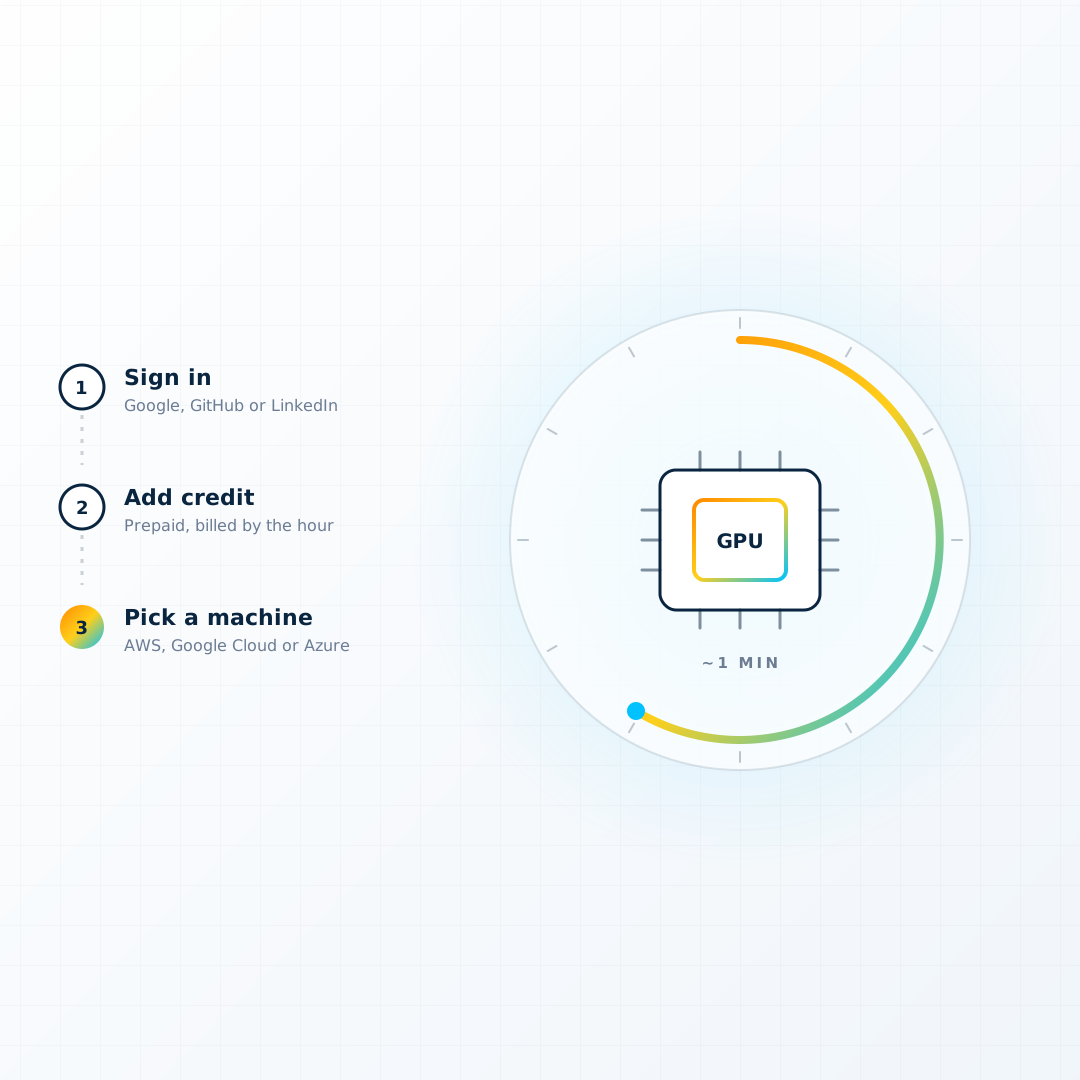
- DiPhyx is the quickest way to get a GPU machine with dxflow on it: about a minute, prepaid by the hour, no cloud account.
The hub workflow that bundles the first two is called Open UI. The rest of this post is about turning it on, on a machine you rent and on a machine you own.
What you get
One port, and it asks who is asking.
Inside the container, Ollama listens on the loopback interface only. No port reaches it from outside. Every request arrives on the web port, where Open WebUI checks the account, the group and the model permission before anything reaches the GPU. That is the single design decision the whole workflow is built around, and it is the reason a bare Ollama server, which has no authentication at all, should never face a network on its own.
On top of that gate:
- Accounts with roles. Administrator, user, and pending. Sign-up is closed by default, so an administrator creates accounts or approves the ones waiting in a queue. Or plug in your identity provider: OIDC and OAuth with Keycloak, Entra or Google, or LDAP.
- Groups carry the permissions. A group decides who may chat, upload files, search the web or issue keys. Model access is granted to groups, so the large model that occupies the GPU can be restricted to the people who need it while a small one stays public.
- A key per person. Each user issues their own API key from their account page. It answers in the OpenAI shape any client already speaks, and in the Anthropic Messages shape too. The key carries exactly that user's permissions: a model they cannot see in the browser is refused to their key as well.
- An audit log. Who called which model, when, through which endpoint. It records metadata and keeps conversation bodies out by default. It lives on the volume next to the database and the model store.
- Sharing one GPU sensibly. Concurrency, queue depth, resident model count and idle unloading are all in the definition. The defaults suit a 24 GB card holding 7B-class models.
- Document upload and retrieval. Users can upload files into a chat and ask questions over them. The files stay on the volume.
Everything the deployment accumulates lands in one folder under the engine's artifacts: the database with accounts, groups, keys and chats; the audit log; uploaded files; and the model store. Back that folder up and you have backed up the whole thing.
Path A: a DiPhyx server, in about a minute
This is the path for a team with no GPU in the building, or a team that wants one for a month before deciding.
- Sign in to DiPhyx with Google, GitHub or LinkedIn and put some credit on the balance.
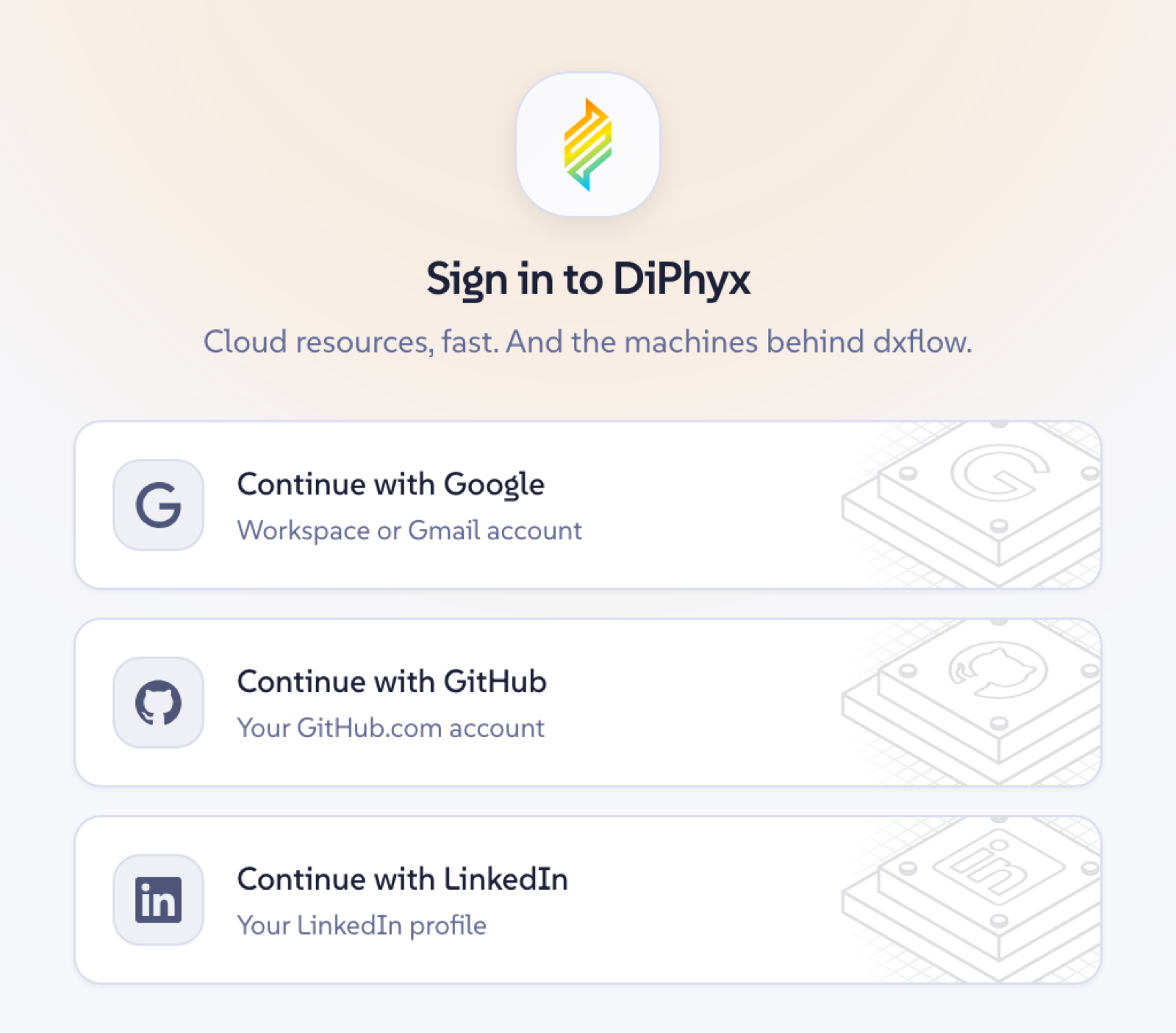
Sign in with Google, GitHub or LinkedIn. There is no password to invent. - Pick a GPU machine. The T4 machines are the entry point. For 7B and 8B models with a few concurrent users, a 16 GB T4 is enough. For larger models or more people, take the L4 with 24 GB.
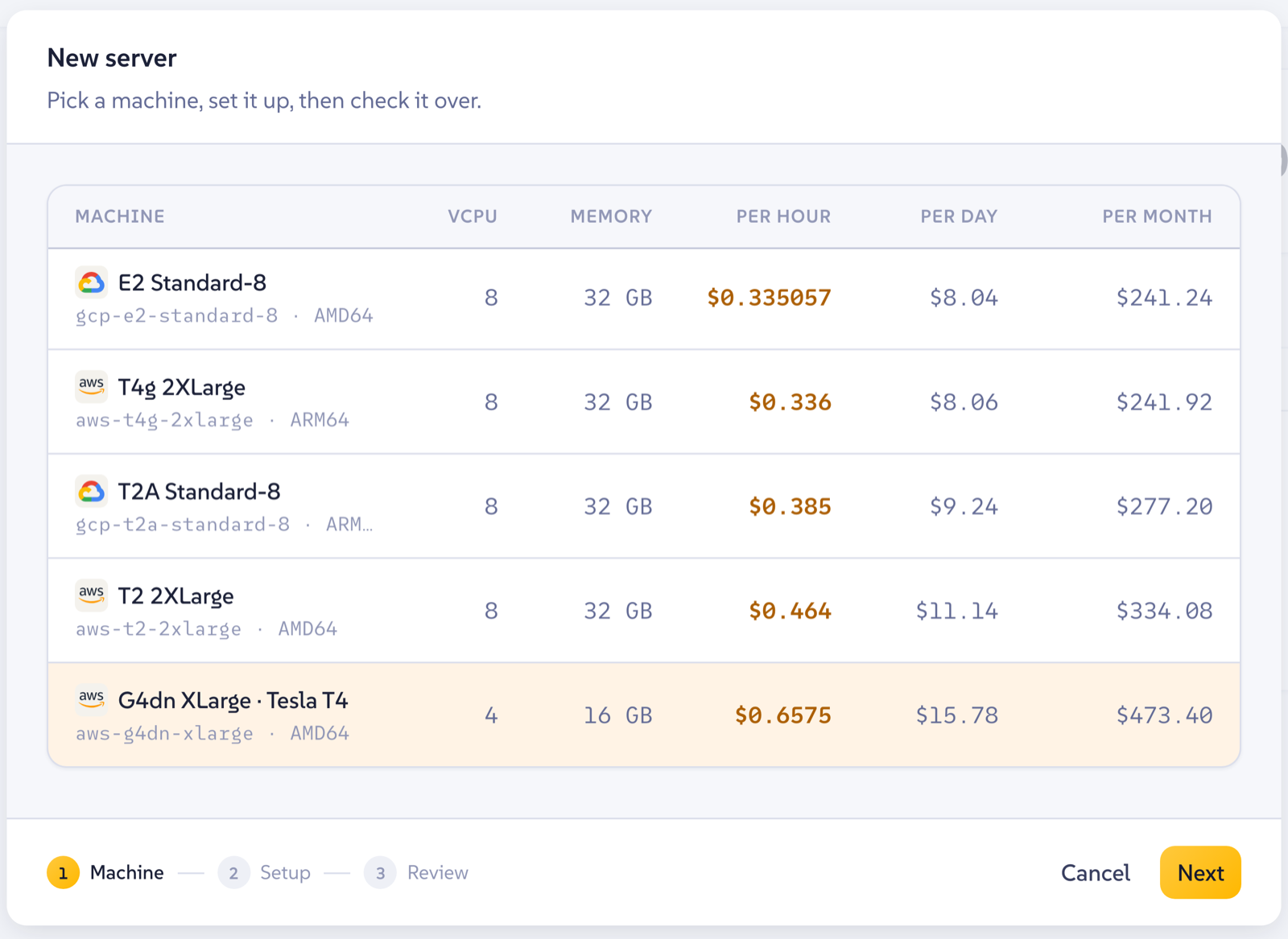
The machine table inside the create form, with the G4dn XLarge and its Tesla T4 picked. Prices are per hour, per day and per month. - In Setup, switch on "Install dxflow with the server" and pick Open UI as the instant workflow. Raise the disk if you plan to keep several models; the workflow asks for 100 GB of storage.
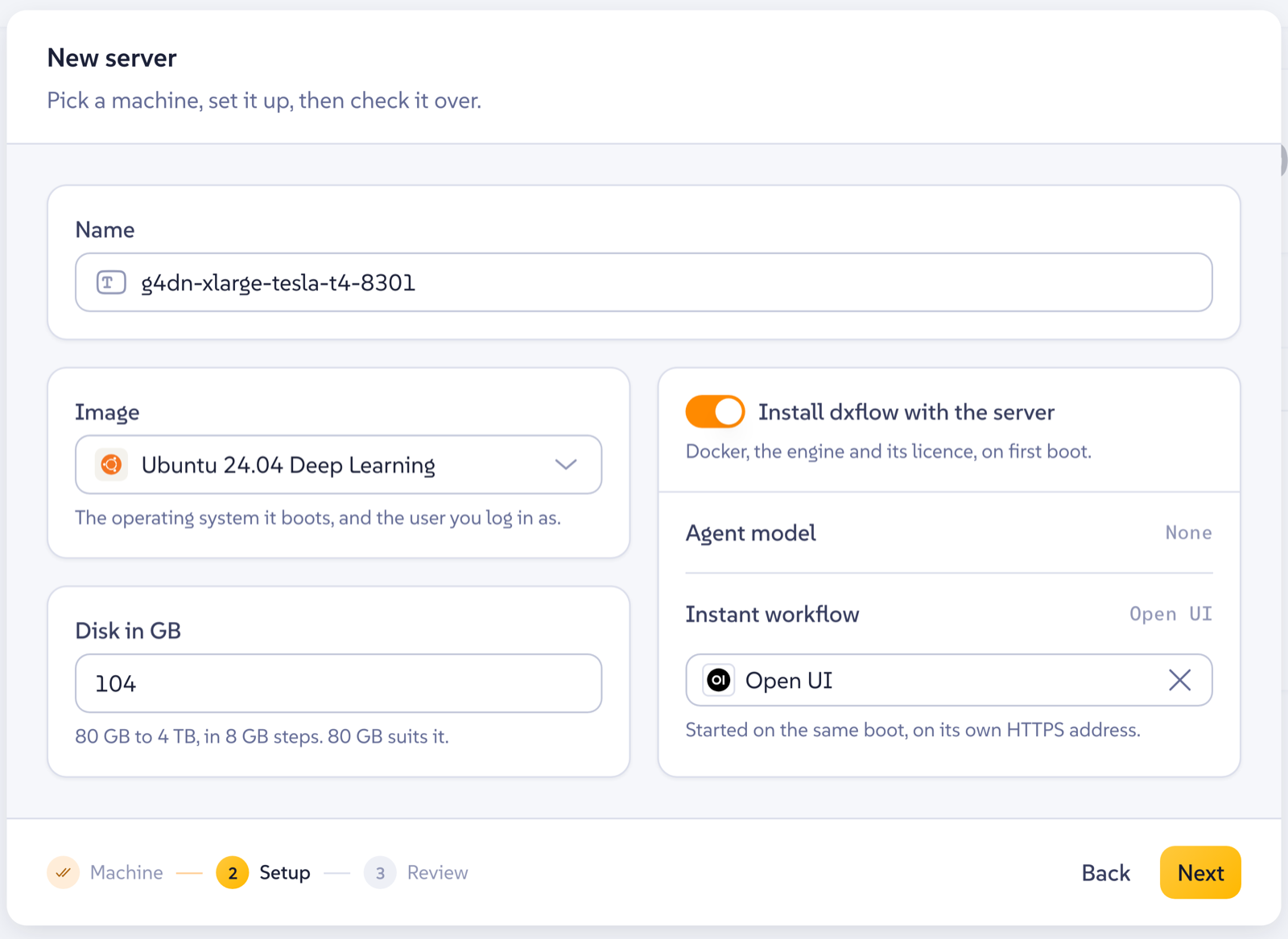
The Setup step: the dxflow toggle on, Open UI chosen as the instant workflow, and the disk raised for the model store. - Create. The machine boots, installs Docker and the dxflow engine, activates its licence, starts the console, installs the GPU driver and container runtime because the machine has a card, and then creates and starts the Open UI workflow on its own HTTPS address. All of it happens on first boot without you doing anything.
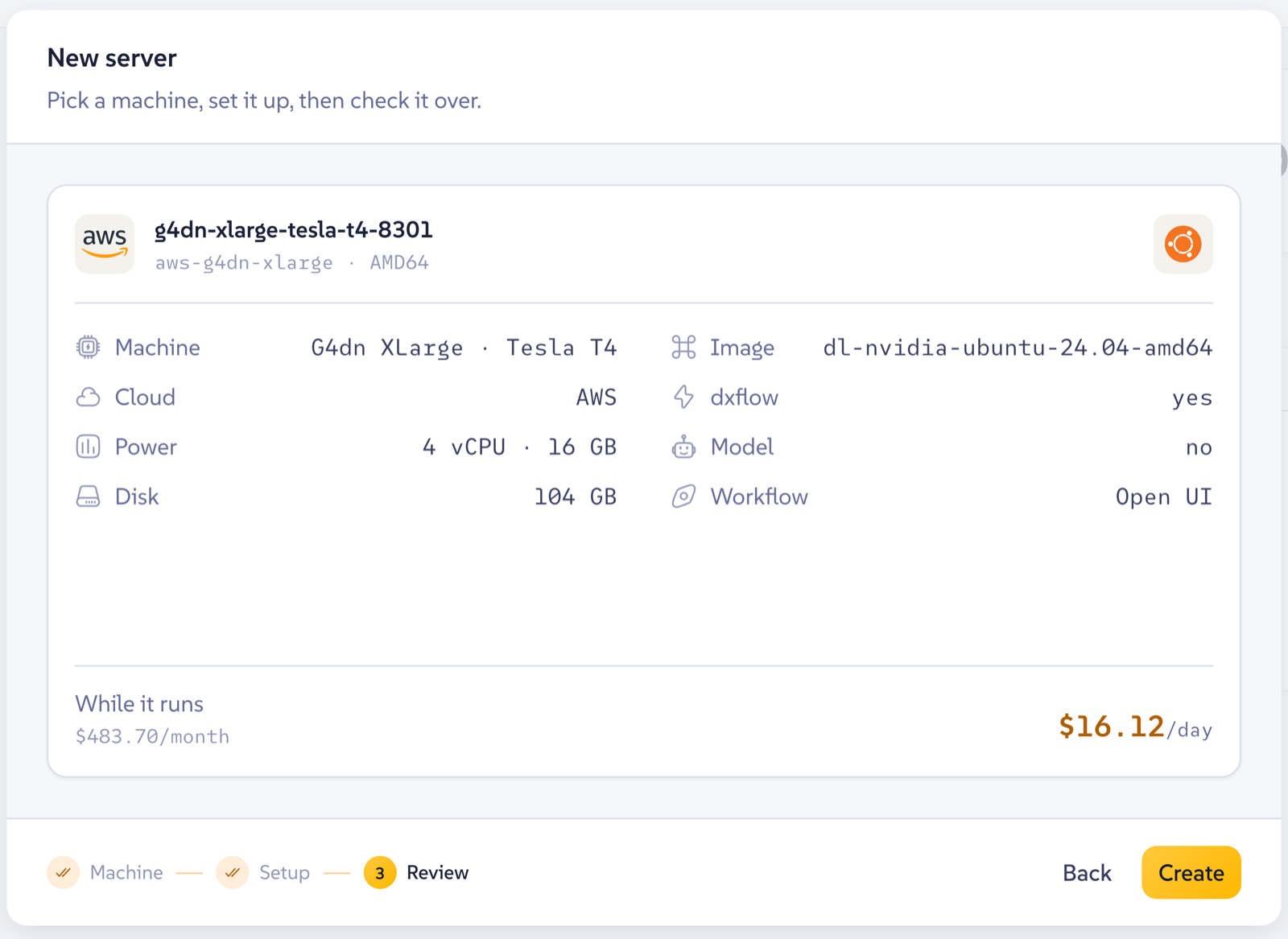
The Review step shows what the first boot will do and what the machine costs while it runs. Create starts it. - Open it. The server page shows the console link and the workflow link. The workflow link is a subdomain of the machine's own link, with a certificate already on it. The admin account's password is drawn per server by DiPhyx and shown on the server page.
Sign in as the administrator, and you are at step "Add your team" below.
A stopped DiPhyx server restarts the same workflow on the next boot, on the same volume, so switching the machine off overnight costs only the disk and loses nothing.
Path B: your own GPU server or HPC
This is the path for a team that already owns the hardware, or that is not allowed to put the data on anyone's cloud, including DiPhyx's.
dxflow is a single binary. On Linux or macOS:
curl -fsSL https://dxflow.ai/install.sh | sudo bash
dxflow --version
Or download the tarball for your platform from the releases page and put the binary on your PATH. There are builds for Linux, macOS and Windows, on x86_64 and ARM64.
Start the engine with its web console:
sudo dxflow boot up --consoleIt serves the console and API on port 80. If you want it elsewhere, set HTTP_PORT in the environment or in the engine's profile file. To sign in to the console from a browser, run dxflow engine pair in another terminal and type the single-use code into the sign-in dialog. Team members who need the console, rather than just the chat page, get their own RSA key registered with dxflow key register, with permissions decided per key.
Then the workflow:
dxflow workflow create --identity open-ui hub://open-ui
dxflow workflow start open-ui --override env.app.ADMIN_PASSWORD=something-long
The definition is fetched from the hub at create time, so each deploy picks up the current one. The chat page is at port 8080 on that machine. On a lab network that may be all you need: give people http://gpu-box:8080 and stop there.
If the team is not all on one network, publish it:
dxflow login                 # once per engine, in a browser
dxflow license activate      # fetches a subdomain and its certificate
dxflow workflow start open-ui --link
The free licence gives the engine a name under link.dxflow.ai and a small number of sub-labels under it, each with a certificate already issued. Starting with --link claims one for the web port, and the page comes back on an HTTPS address. The platform records the address it observed the engine from, so this works from behind NAT. Set WEBUI_URL to that address so share links and OAuth redirects resolve, and leave sign-up closed.
Your prompts, files and chats still never leave the machine. The link is a name and a certificate. Traffic goes straight to your engine.
On an HPC node. dxflow drives Singularity and Apptainer as well as Docker and Podman, and maps the GPU request to --nv or --rocm. Instances there share the host's network and process namespace and do not map ports, so the web page answers on the node's own address. Resource limits on those runtimes need cgroups v2 with systemd user delegation, which the engine documents and which is worth setting up with the cluster admin before relying on memory caps. Where the site allows a persistent service on a GPU node, this is the same one command; where it does not, a lab-owned GPU workstation with Docker or Podman is the simpler home for a shared chat service, and the HPC stays for the batch work.
Several GPU machines. The step has a second mode. Name model servers in OLLAMA_BASE_URLS, separated by semicolons, and the bundled server does not start. The step becomes the gate alone, needs no GPU of its own, and spreads requests across the machines named. Each of those can be the hub's plain Ollama workflow on a machine with a card, reachable from the gate and from nowhere else. A model present on two servers shows as one entry with twice the capacity behind it.
dxflow workflow start open-ui \
    --override 'env.app.OLLAMA_BASE_URLS=http://gpu-01:11434;http://gpu-02:11434' \
    --override resource.app.gpu= \
    --override resource.app.memory=4G \
    --link
Hosted models can sit beside the local ones under the same permissions, through OPENAI_API_BASE_URLS, if some of the team is allowed a commercial model for some of the work. The gate does not care where the model lives. The audit log records the call either way.
Add your team
Everything below is in Open WebUI's Admin Panel, reached from the account menu.
- Change the admin password from Settings, Account, if you did not set one on the start line. The default is on a public documentation page. Later starts do not touch an account that already exists, so the environment variable will not change it afterwards.
- Create groups first, under Users, Groups. A group is what permissions and model access attach to, so it should exist before the people who will join it.
- Create accounts or approve them. Users, Overview lists the accounts waiting in the queue. Or connect your identity provider and let the roles and groups follow from its claims.
- Pull a model. The store starts empty on purpose, because a model is a decision about a particular card. From Settings, Models, open the Actions menu, choose Manage, and pull a tag from the Ollama library.
qwen2.5:1.5bis a sensible first pull: small enough for CPU, and its template carries tool calling, which the interface uses for chat titles and search. Then pull the one you actually want: an 8B model for a T4, a 14B or a quantised 30B for an L4. - Restrict the big ones. Each model is public or restricted to groups. Restrict the model that occupies the GPU to the group allowed to occupy it.
- Hand out the URL. Each person signs in, chats, and issues their own key from their account page if they want one for a script or an editor plugin.
Check the gate once, from a shell anywhere that can reach the page:
curl -s -o /dev/null -w '%{http_code}\n' -X POST https://a.yours.link.dxflow.ai/api/chat/completions \
    -H 'Content-Type: application/json' \
    -d '{"model":"qwen2.5:1.5b","messages":[{"role":"user","content":"hi"}]}'
# 401. Anything else means the door is open.
And watch it work:
dxflow artifact download open-ui/data/audit.log -
dxflow workflow logs --live open-ui
Using it from code
Every OpenAI client already knows how to talk to this. Point the base URL at the deployment's /api and use a personal key:
from openai import OpenAI

client = OpenAI(
    base_url="https://a.yours.link.dxflow.ai/api",
    api_key="sk-...",            # issued from the user's own account page
)

reply = client.chat.completions.create(
    model="llama3.1:8b",
    messages=[{"role": "user", "content": "Summarise this incident report."}],
)
A client that speaks the Anthropic Messages shape uses /api/v1/messages on the same host. Editor assistants, internal tools and notebooks all get the same treatment: the model is a URL on your machine, and the key is worth exactly what its account is worth. An administrator's key reaches every model, so it belongs in no application. Issue keys from the accounts that will use them.
What this does not do
- It does not meter spend per user. Open WebUI decides whether a user may call a model, not how much. The queue and concurrency settings bound the load on a shared card, and the audit log names who is generating it. A per-user token budget means a metering proxy such as LiteLLM behind the gate.
- It does not make a small GPU large. A 16 GB T4 runs 7B and 8B models well and runs larger ones slowly or not at all. Pick the machine for the model you want, not the other way around.
- It does not replace the engine's own sign-in. The chat page has its own accounts. The dxflow console and API stay behind the engine's key-based auth, and a person who only needs to chat never sees them.
Why this shape
The commercial assistants are good. What they cannot offer is a straight answer to the question "where did my data go", and for some teams that is the whole decision. This setup gives the same page and the same API, on a machine you can point at. On DiPhyx it is an hourly line on a prepaid balance that stops when the machine does. On your own hardware it is a binary and one command.
Either way, the model belongs on the GPU, the gate belongs in front of it, and the team belongs at a URL. Nothing else has to leave the building.
Related: a companion story in the dxflow series, on one GPU host serving many device agents, covers the other end of the same idea, where the model stays on the host and small agents run on every device. What dxflow is and a GPU in a minute cover the two halves this post stands on.